Running a Virtual iPhone on Apple Silicon with vphone-cli
If you've ever developed for iOS or dug into Apple's system services, you've likely run into the limitations of Xcode's standard simulator. The simulator builds binaries for the host architecture and runs them in a special macOS environment. This works well for rapid UI prototyping, but there's no real Darwin kernel for iPhone, no proper process isolation, and no host of system daemons. Until recently, testing low-level components or tweaks required keeping a stack of test devices on your desk.
The situation changed when Apple released the Private Cloud Compute (PCC) environment for security researchers in macOS 15 Sequoia. Developer Lakr233 leveraged this infrastructure and wrote vphone-cli. This is a console utility that builds and runs a full-fledged virtual machine with real iOS right on an Apple Silicon Mac.
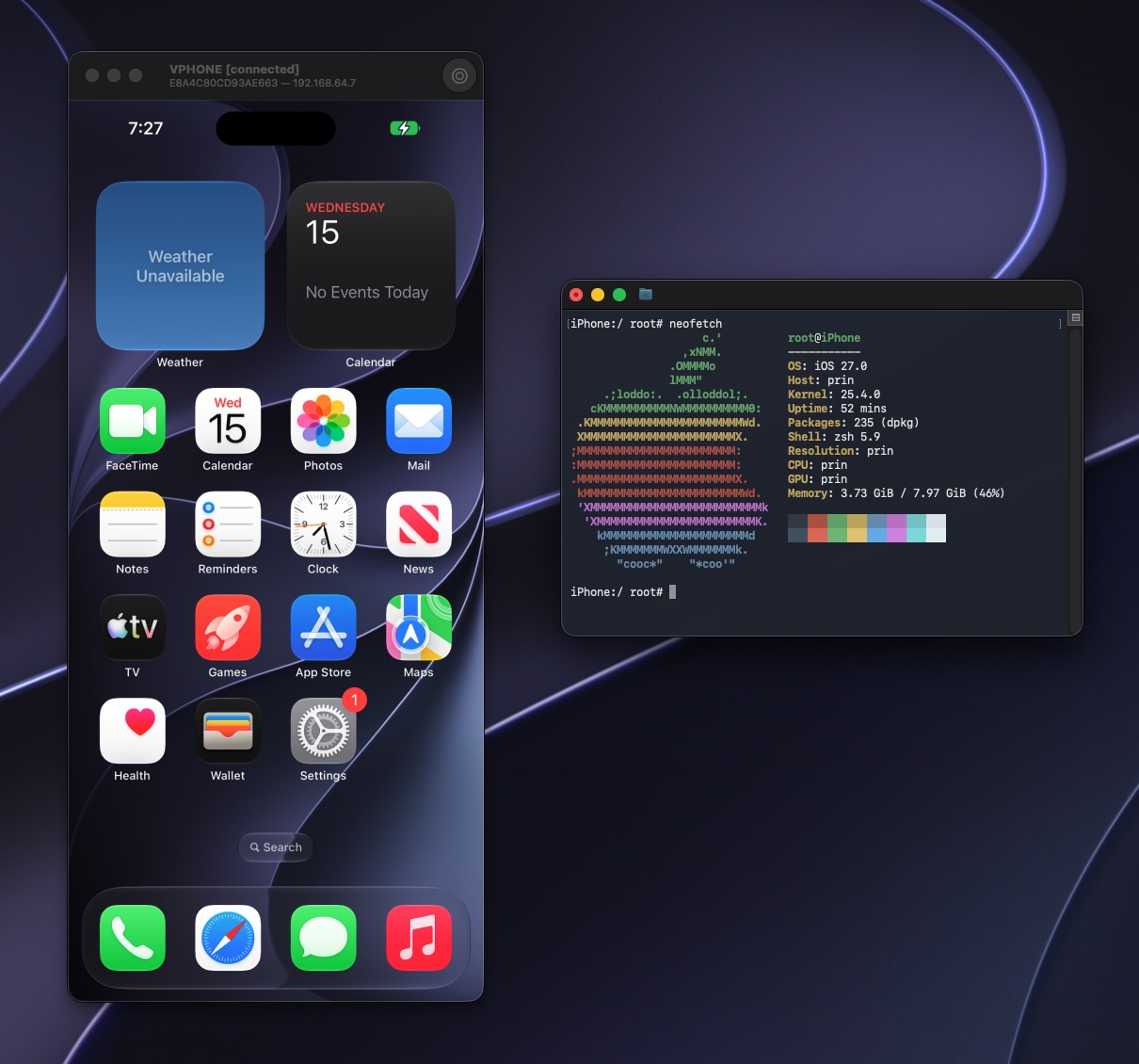
How it works under the hood
The project is built on Apple's Virtualization.framework system framework with the private virtualization type PV=3. The utility takes two official IPSW images: the standard iPhone firmware and the CloudOS image. Scripts then merge them, patch the boot chain, perform DFU recovery, and apply a custom system partition.
The result is a genuine guest iOS instance with its own network address, SSH access, and VNC connectivity.
Host preparation
Getting the project running isn't a one-click affair. Apple tightly guards its internal virtualization mechanisms, so you'll need to relax the host system's restrictions.
You'll need an M-series Mac running macOS 15 or later. First, disable SIP or enable guest research systems. To do this, reboot your Mac into Recovery mode (hold the power button during startup) and open Terminal:
csrutil disable
csrutil allow-research-guests enable
After rebooting into normal mode, pass a kernel parameter to disable AMFI:
sudo nvram boot-args="amfi_get_out_of_my_way=1 -v"
If you'd rather not disable system-wide checks, the author provides an alternative. You can keep SIP in debug mode and launch the utility through an auxiliary binary vphone-amfidont that selectively removes restrictions.
Install core utilities via Homebrew dependencies:
brew install [email protected] aria2 wget gnu-tar openssl@3 ldid-procursus sshpass keystone cmake libusb ipsw zstd
brew install zqxwce/tap/vphone-cli
Creating your first VM
The entire VM creation process is automated with a single command. The utility downloads the required IPSW files, patches the bootloader, creates the bundle, and performs the initial setup procedure:
vphone-cli vm create myphone -V jb
vphone-cli vm launch myphone
The -V flag (or --variant) sets the depth of firmware modification. The repository has five variants:
lesscontains only 4 patches and leaves iOS standard security mechanisms enabled.regularincludes 42 patches that bypass AMFI, the Signed System Volume (SSV) signature check, and TXM.devadds bypasses for entitlement checks and debug locks.jbapplies 113 patches and immediately installs the Sileo package manager along with TrollStore.expextends the jailbreak version with patches that hide the fact that it's running inside a virtual machine.
The jb profile suits most experiments. Once creation completes, the image boots and you can connect to it.
Connecting and working
Virtual device control is split across two channels: terminal and graphics.
Shell access uses SSH on port 22222:
ssh -p 22222 mobile@<ip-адрес-виртуалки>
The default password for the mobile user in jailbroken builds is alpine. If you selected profile dev or regular, connect as user root.
The graphical display is output via the built-in VNC server on port 5901. Open it using macOS's built-in Screen Sharing app by entering vnc://<ip-адрес-виртуалки>:5901.
Initial iOS setup has a couple of quirks. On the screen that says "Press home to continue", right-click in the VNC window: this emulates pressing the physical Home button. When selecting a region during initial setup, it's best to specify the USA. If you choose EU countries or Japan, the system will run additional regulatory checks that currently fail in the virtual environment.
Installing third-party apps in .ipa or .tipa format is done by simply dragging the file into the running virtual machine window.
Automation and socket-based control
The author built in programmatic control capabilities. A Unix socket vphone.sock is created inside the VM bundle. Through it, you can send screen tap commands, swipes, hardware button events, and clipboard data.
Each action through the socket returns a screenshot of the current screen state. This is useful for those writing end-to-end integration tests or connecting language models for app exploration. The project ecosystem already has a ready-made server vphone-mcp that wraps this socket in the Model Context Protocol.
Caveats
The project is actively developing and has some rough edges.
Nested virtualization isn't supported at the hardware level. You can't run vphone-cli inside another macOS virtual machine (for example, in a cloud runner or Tart), so a physical Mac is required.
Sometimes during custom firmware installation, the process hangs at the stage of re-signing system binaries with the ldid-procursus utility. This is related to a bug in the stable Homebrew formula where the null value handling function enters an infinite loop. The fix is to rebuild the package from the development branch via brew install --HEAD ldid-procursus.
If iOS 18-based apps crash with error EXC_GUARD, rebuild the patches with the --force-exc-guard flag.
Who will find this project useful
The utility is primarily useful for reverse engineers and mobile app security specialists. It eliminates the need to purchase separate devices for jailbreaking and allows quickly resetting the system state to a clean snapshot via APFS cloning.
For tweak developers and low-level system daemon engineers, the project provides a convenient debugging environment without the risk of turning a real phone into a brick. If you have an available Apple Silicon Mac and an interest in iOS internals, this tool is definitely worth deploying and exploring.
Related projects