How to Stop Opening Heavy IDEs Just to Launch a Single Emulator

If you develop for mobile platforms using Flutter, React Native, or a native stack, you're probably familiar with this routine. You need to quickly check the layout on an old Pixel or a new iPhone. To do this, you either keep power-hungry Android Studio and Xcode open, or you have to remember the command syntax for emulator -avd and xcrun simctl boot every time.
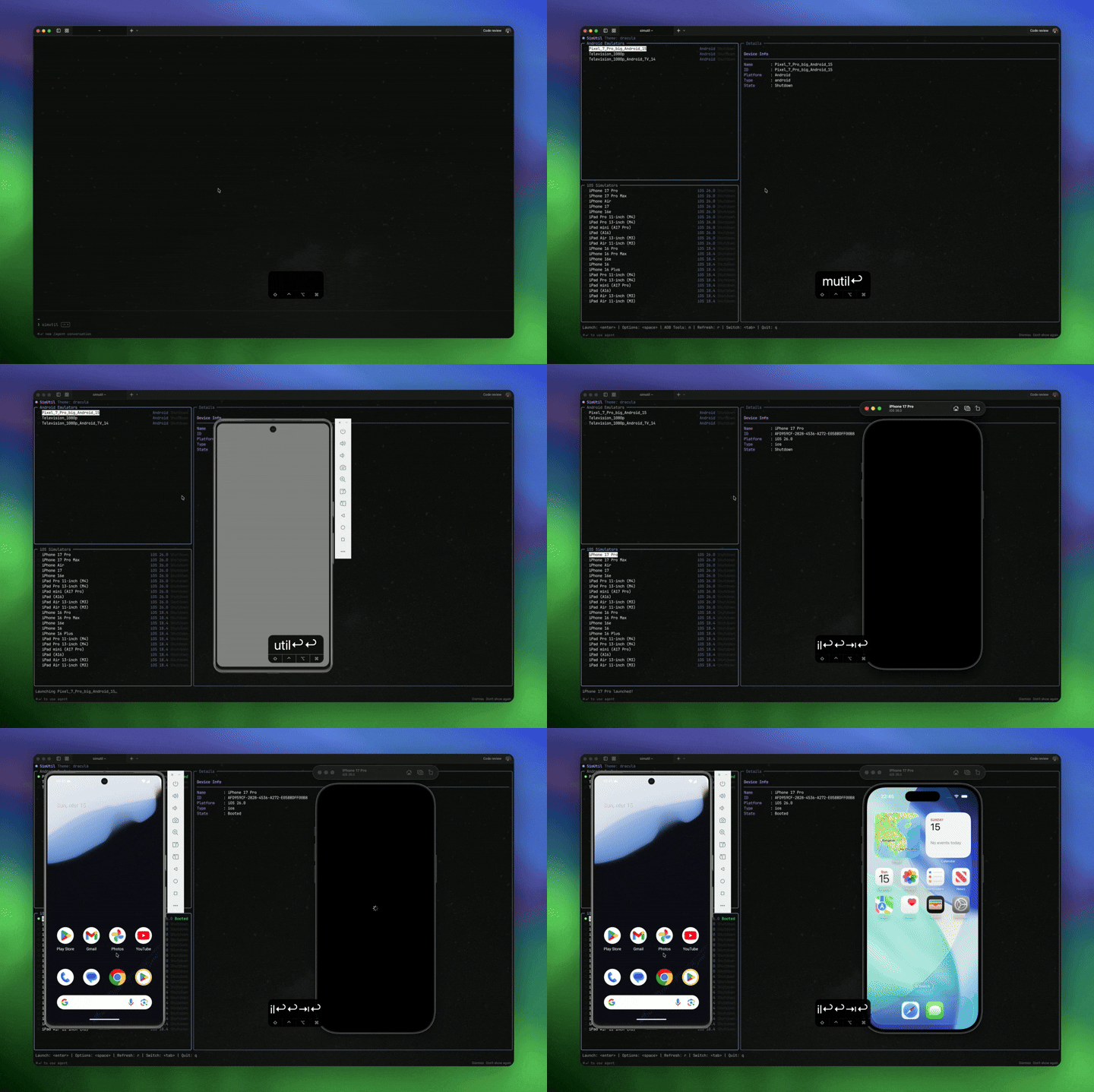
I recently came across simutil. It's a small utility with a text-based user interface (TUI) that brings all your virtual and physical devices together in one terminal window.
What This Tool Can Do
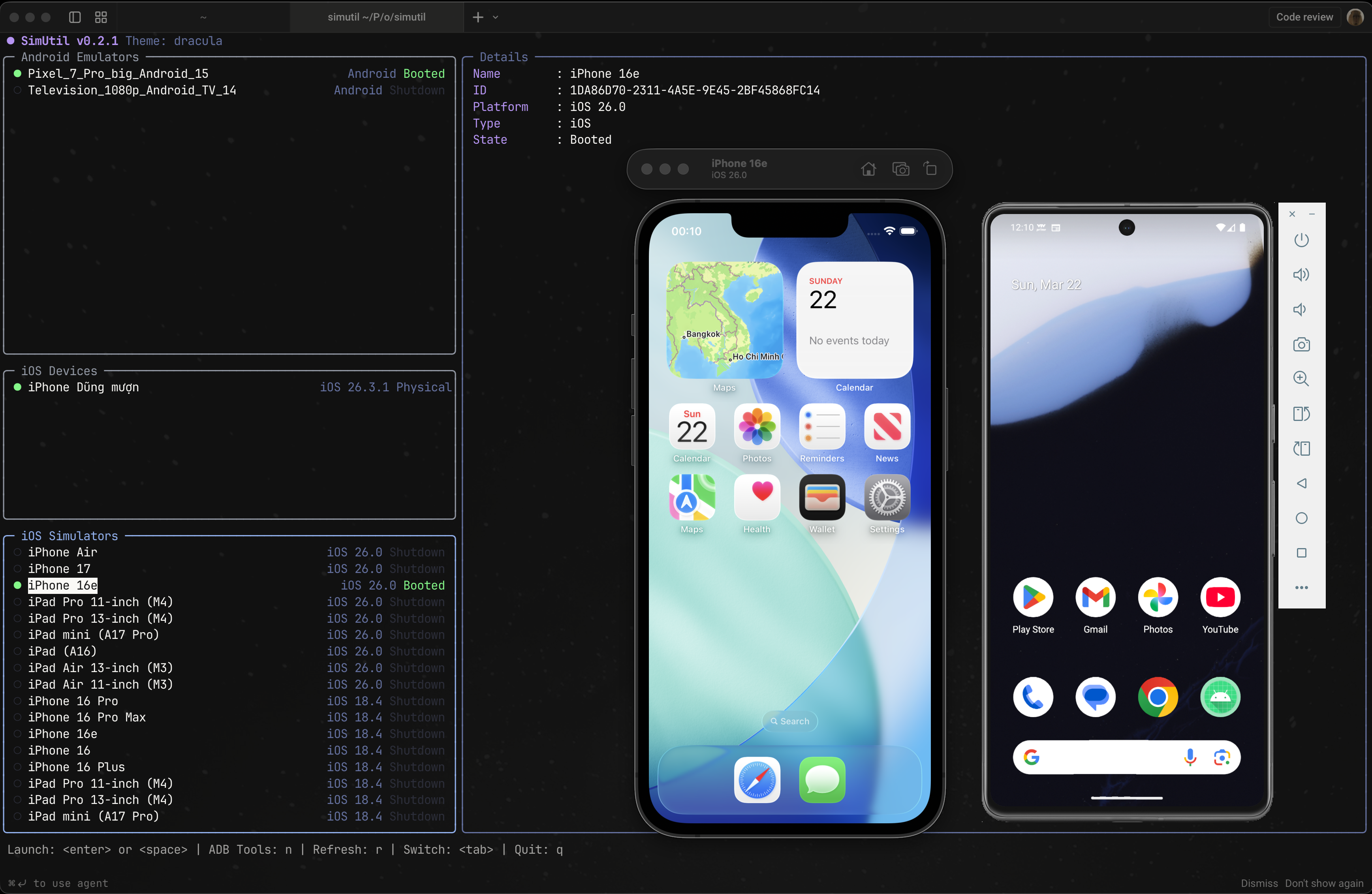
The interface is divided into neat panels. You can see the list of iOS simulators, Android emulators, and connected physical devices. Navigation works with arrow keys, no mouse needed.
Here are practical scenarios where the tool saves time:
- One-click launch. Select a device, press Enter, and it starts in the background.
- Android startup mode selection. Pressing Space opens a menu: normal launch, Cold Boot, launch without sound, or cold start without audio right away.
- Wireless ADB connection. The utility can connect physical smartphones via IP, a six-digit pairing code, or through a QR code directly in the terminal.
- Built-in Logcat viewer. You can read system logs from the selected Android device and filter them on the fly without leaving the utility.
- Quick Xcode cache cleanup. On macOS, pressing the
xkey will show you the size of the DerivedData folder and offer to delete it.
Custom Plugins via YAML
An interesting detail: the author didn't hardcode all possible external tools into the binary but created a plugin system via config.
On first launch, a ~/.simutil/settings.yaml file is created. You can describe calls to any console utilities in it, binding them to hotkeys. For example, here's what a ready-made integration with scrcpy for Android screen mirroring looks like:
theme: dark
last_selected_device_id: ~

plugins:
  - id: scrcpy
    label: scrcpy
    description: Screen mirroring and control for Android
    availability:
      command: scrcpy
      args: [--version]
    commands:
      - id: mirror
        label: Screen Mirror
        command: scrcpy
        args: [-s, "{device.id}"]
        platforms: [android]
        requires_running: true
        mode: detached
        shortcut: s
Press s on a running device — the scrcpy window opens. The config supports substitution variables like {device.id} and {device.name}, so you can easily add Maestro test runs or any custom bash scripts. To edit the settings file, just press e within the interface.
Technical Details
The project is written in Dart. The Nocterm library is used for building the terminal interface, and its syntax closely resembles the familiar widget-based approach in Flutter.
As for platforms: simutil itself works on macOS, Linux, and Windows. But there are OS limitations that can't be avoided. iOS simulators run exclusively on macOS because they depend on Apple system utilities (simctl and devicectl). On Linux and Windows, the utility focuses only on working with Android, Logcat, and wireless ADB.
Installation and Setup
You can install simutil in several ways.
Via Homebrew on macOS and Linux:
brew tap dungngminh/simutil
brew install simutil
With a universal installation script:
curl -fsSL https://raw.githubusercontent.com/dungngminh/simutil/main/install.sh | bash
For Windows via PowerShell:
powershell -ExecutionPolicy Bypass -Command "iwr -useb https://raw.githubusercontent.com/dungngminh/simutil/main/install.ps1 | iex"
If you already have the Dart SDK installed:
dart pub global activate simutil
After installation, run the command:
simutil
Who Will Find This Useful
The tool will appeal to those who prefer lightweight editors like VS Code, Zed, or Neovim and don't want to open heavy development environments just for an emulator manager. It covers basic testing needs and switching between devices in a couple of key presses.
相关项目