How to Forward a Terminal Directly to the Browser Using WeTTY
Imagine this: you urgently need to access a home server or work virtual machine from a tablet, someone else's laptop, or a work computer with strict security policies where port 22 is completely blocked and you can't install a proper SSH client. You open a browser, type in an address, and get a full-featured command line with your familiar shell.
This is exactly what the WeTTY project (Web + TTY) was created for.
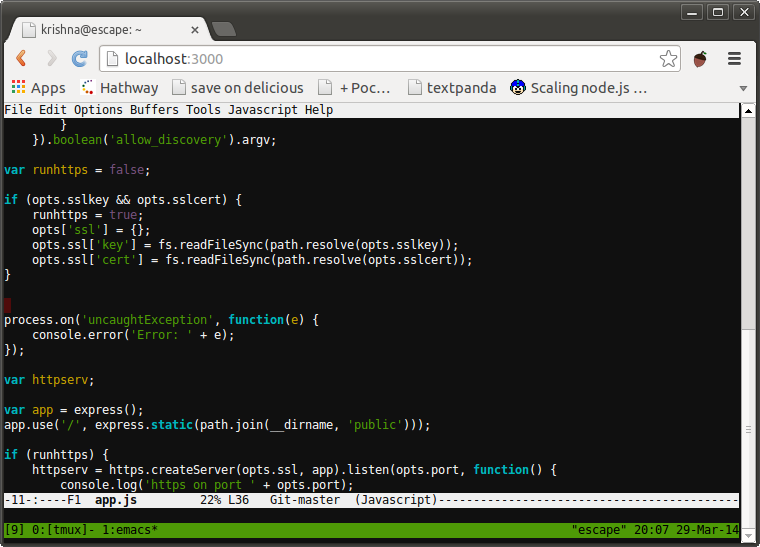
Under the Hood
Older solutions like Ajaxterm or Anyterm were painfully slow because they relied on regular HTTP requests going back and forth. WeTTY works differently. The backend is built with TypeScript and Node.js, communication with the browser happens over WebSockets, and rendering is handled by the xterm.js terminal emulator (the same one that powers VS Code).
Thanks to the xterm.js and WebSocket combination, input latency is barely noticeable if you have a stable internet connection. Utilities with pseudo-graphics work without issues in the browser window: htop, tmux, mc, vim, and nano. Mouse support, hotkeys, and terminal colors all function as expected.
How to Launch
You can deploy the utility in two quick ways: via npm or in a Docker container.
Option 1. Installation via npm
If the machine already has Node.js version 20 or higher, along with build tools (make, python, build-essential), the utility can be installed with a single command:
npm -g i wetty
After installation, start the service:
wetty --port 3000
Now navigate to http://localhost:3000 and log in with the desired user. If WeTTY is running as a regular user, it will establish an SSH session to localhost by default. Running as root will invoke /bin/login instead.
Option 2. Running in Docker
I personally find it easiest to keep utilities like this in containers to avoid cluttering the host with unnecessary global Node.js packages:
docker run --rm -p 3000:3000 wettyoss/wetty --ssh-host=192.168.1.50
Replace 192.168.1.50 with the IP address of the host you want to connect to via SSH.
Useful Launch Parameters
The utility offers flexible configuration through command-line flags:
--ssh-hostand--ssh-portredirect the connection to a separate remote server.--ssh-usersets a default user so you don't have to type the login each time.--ssl-keyand--ssl-certenable direct traffic encryption.--allow-iframepermits embedding the terminal in iframes on other sites (for example, in dashboards or monitoring panels).
If you don't want to specify flags every time you start, you can package the parameters into a configuration file and pass it via --conf.
Security and Production Use
Exposing an unprotected HTTP port of WeTTY to the internet is absolutely not recommended. Any attacker could attempt to brute-force passwords or intercept unencrypted traffic.
In practice, a reverse proxy (NGINX, Traefik, or Caddy) is typically placed in front of WeTTY to handle multiple responsibilities:
- Issuing and renewing free SSL certificates from Let's Encrypt.
- Proxying WebSocket connections.
- An additional authorization layer through Basic Auth or Authelia.
- Restricting access based on IP address whitelists.
Here's a typical NGINX configuration example:
location /wetty/ {
    proxy_pass http://127.0.0.1:3000/wetty/;
    proxy_http_version 1.1;
    proxy_set_header Upgrade $http_upgrade;
    proxy_set_header Connection "upgrade";
    proxy_read_timeout 43200000;

    proxy_set_header X-Real-IP $remote_addr;
    proxy_set_header X-Forwarded-For $proxy_add_x_forwarded_for;
    proxy_set_header Host $http_host;
    proxy_set_header X-NginX-Proxy true;
}
Don't forget to run WeTTY itself with the --base /wetty/ flag so the routing paths align correctly.
Who This Project Is For
WeTTY addresses specific practical needs:
- Quick administration of home servers (Home Lab) and routers directly from a mobile phone or iPad.
- Setting up demo environments and training sandboxes where students need shell access without configuring SSH clients.
- Embedding a terminal window into internal web-based infrastructure management panels.
- Accessing servers from isolated corporate networks where only ports 80 and 443 are open.
If you need a lightweight way to spin up a terminal in the browser without heavy web interfaces like Cockpit or Proxmox, WeTTY handles this in just a couple of minutes. Just spin up the container behind a reverse proxy and add authentication.
相关项目