How to Connect a Neural Network to a Live Browser with Browser Harness

Everyone who has tried to automate the web with language models knows this pain. The agent cheerfully starts clicking buttons, but gets stuck dead on the very first non-standard input field or tricky captcha. Traditional frameworks offer a rigid set of tools: click, type, scroll. If the required action isn't in the agent's codebase, the task falls apart.
The browser-use team proposed a different approach in the browser-harness project. Instead of trying to anticipate all possible web page scenarios in advance, they created a wrapper that connects an LLM to your real browser via the Chrome DevTools Protocol (CDP) and gives the model the ability to write missing functions on the fly.
What's the Idea Behind the Self-Learning Wrapper
A regular browser agent works in isolation. It gets an isolated headless browser with no saved sessions, cookies, or authorizations. As a result, half the time goes to trying to log in.
Browser Harness connects directly to your running Chrome via the debug port. The model immediately sees open tabs, your profiles, and working environment.
The most interesting part lies in the code handling mechanics:
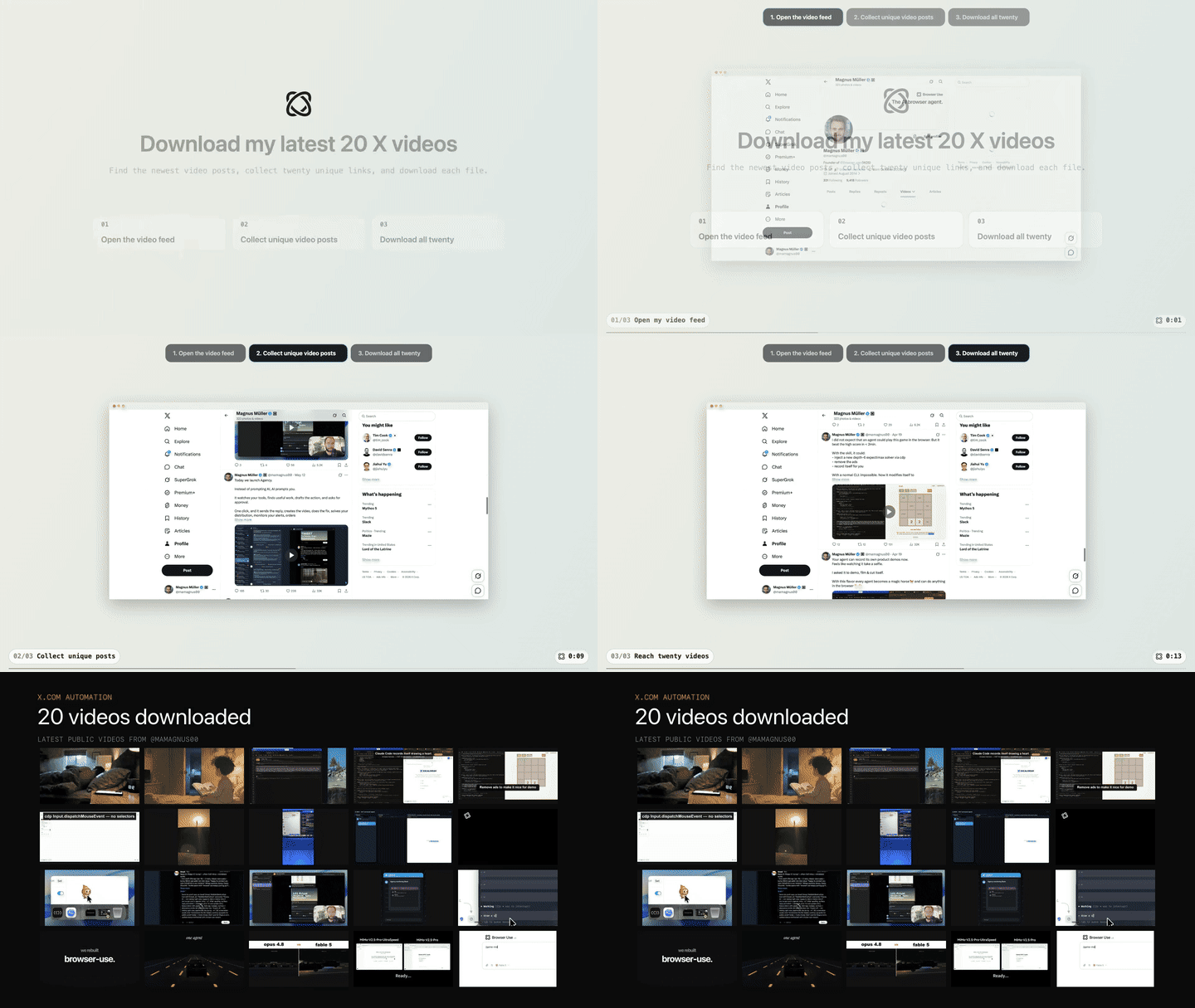
- The agent receives a task, for example, downloading the last twenty videos from a social media profile or filling out a complex form with a file drop zone.
- The model checks the local file
agent-workspace/agent_helpers.py. If there's no suitable function for working with the element, the agent writes a helper script itself. - The script is immediately executed in the page context. If it works successfully, the function is saved to the workspace.
- When performing the next similar task, the agent doesn't reinvent the wheel but uses the previously written helper.
At the same time, the core of the library itself in the src/browser_harness/ folder remains protected from changes. The model only extends its own local workspace, so the risk of breaking the core logic is minimal.
How the Launch Works
The project is tightly integrated with agentic development environments like Claude Code or Codex. To get started, just feed your assistant a ready-made installation prompt:
Install or upgrade browser-harness to the latest stable version with uv using Python 3.12, register the skill from `browser-harness skill`, and connect it to my browser. Ask whether I want local browser recordings enabled; default to no and preserve my existing preference on upgrades. Follow https://github.com/browser-use/browser-harness/blob/main/install.md if setup or connection fails.
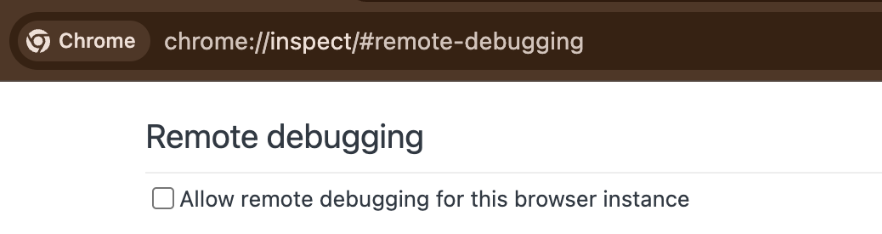
After running the command, the chrome://inspect/#remote-debugging tab will open. There you need to check the remote debugging box so the agent gets access to the CDP WebSocket:
The whole stack is held together by three clear files:
- The
install.mdinstruction handles the initial connection to the browser via the debug port. - The
SKILL.mdfile describes interaction patterns with pages for the LLM. - Modules in the
src/browser_harness/directory maintain a persistent socket and pass commands.
What's Inside and What Technologies Are Used
Under the hood, the project uses Python 3.12 and the uv package manager. Session management uses a direct WebSocket to CDP, without heavy wrappers like Selenium.
This approach gives two practical advantages:
- Minimal latency when transmitting input events, scrolling, and clicks.
- Full access to DOM, network requests, and browser storage without needing to set up additional bridges.
If you need to run dozens of tasks in parallel, the creators offer Browser Use Cloud infrastructure with ready-made proxies, bot-detector protection, and captcha solving. But for everyday local runs on your own browser, that's more than enough.
Practical Use Cases
Where such a tool really saves time:
- Collecting data from private dashboards where there's no public API and two-factor authentication is set up. You authorize manually once, and hand off the routine report export to the agent.
- Bulk media file downloads. The agent opens the page, scrolls the feed, finds the necessary video player selectors, and saves files to a local folder.
- Testing layouts and user scenarios. The agent walks through the user journey, writes missing checks itself, and stores them in helpers.
- Filling out repetitive forms in corporate CRM systems when you need to transfer a batch of data from a spreadsheet.
Is It Worth Trying
If you actively use agentic CLI tools like Claude Code and are tired of manually copying data from pages to the terminal, the project is definitely worth trying. The concept where the agent itself expands its toolkit through persistent helpers looks much more viable than endlessly bloating the system prompt.
From the downsides, I'll note that the project requires careful attention to security: by giving an LLM access to your main browser, you're sharing all open sessions. So for experiments, it's wiser to create a separate Chrome profile without linked bank cards and critical services. Start with simple parsing scenarios, watch how the agent generates its first functions in agent_helpers.py, and evaluate how well this format fits into your usual stack.
Related projects