How to Stop Guessing and Start Understanding Your AI Partner
Recently I caught myself thinking: I spend more time with GitHub Copilot and Cursor than with my actual team members. We constantly exchange prompts, it writes code for me, I fix it. But if someone asks me how effectively I'm using it, I won't be able to give a clear answer. "Well, it seems to help" — not exactly a solid metric for an engineer.
It turns out Microsoft asked themselves the same question. A group of employees open-sourced AI Engineering Coach. It's a tool that looks at your local AI interaction logs and turns them into an analytics dashboard. No data sent to the cloud, just local post-mortem analysis.
What is it anyway
The project is a VS Code extension (or canvas for the GitHub Copilot app) that analyzes your sessions. It doesn't just count the number of requests — it tries to assess the quality of your interaction with the neural network.
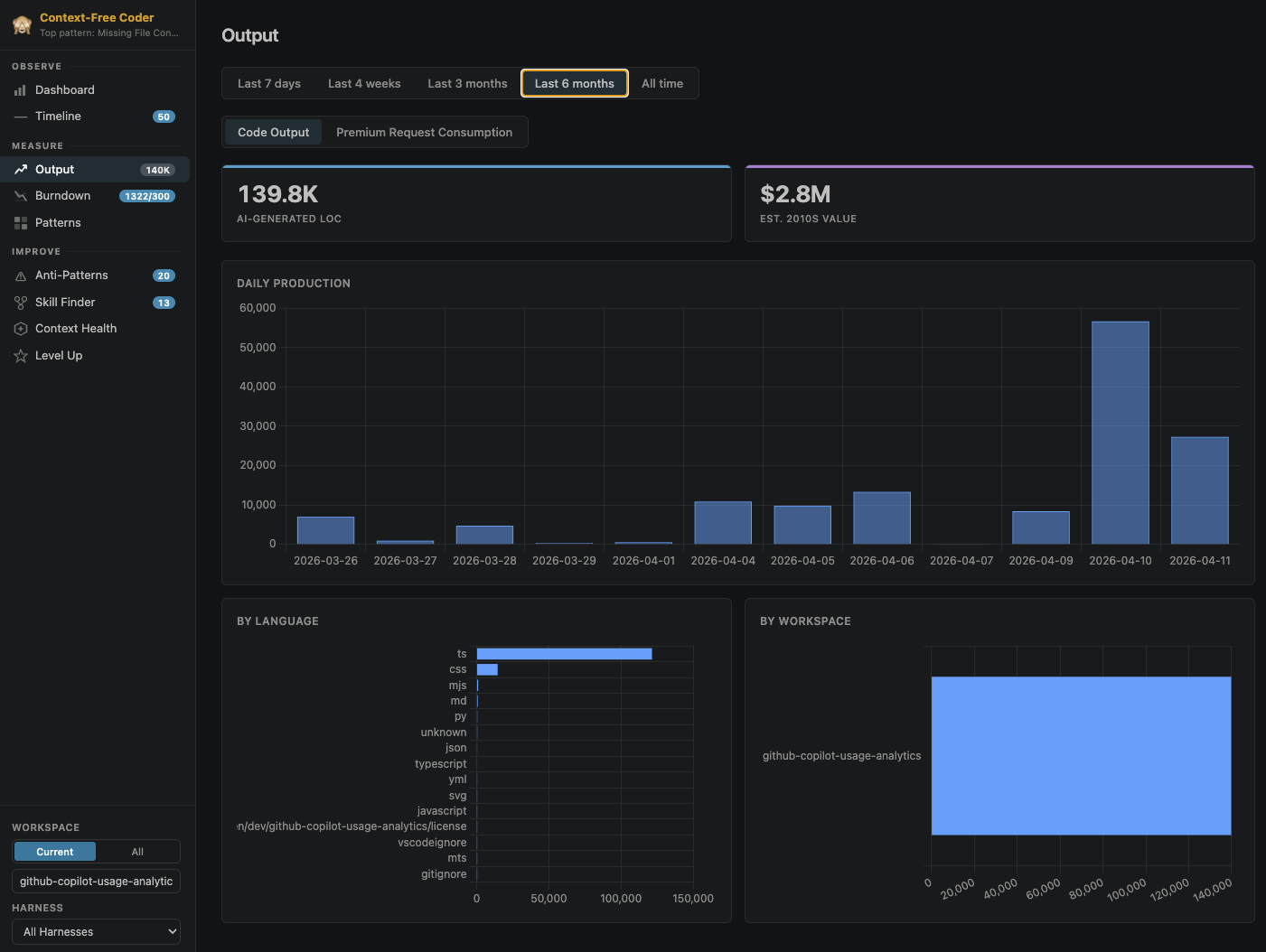
The tool is useful for those who feel stuck at the level of "write me a function for email validation" and want to get the most out of AI agents. It highlights anti-patterns, finds recurring skills, and even builds a map of your project's context.
Five things that caught my attention
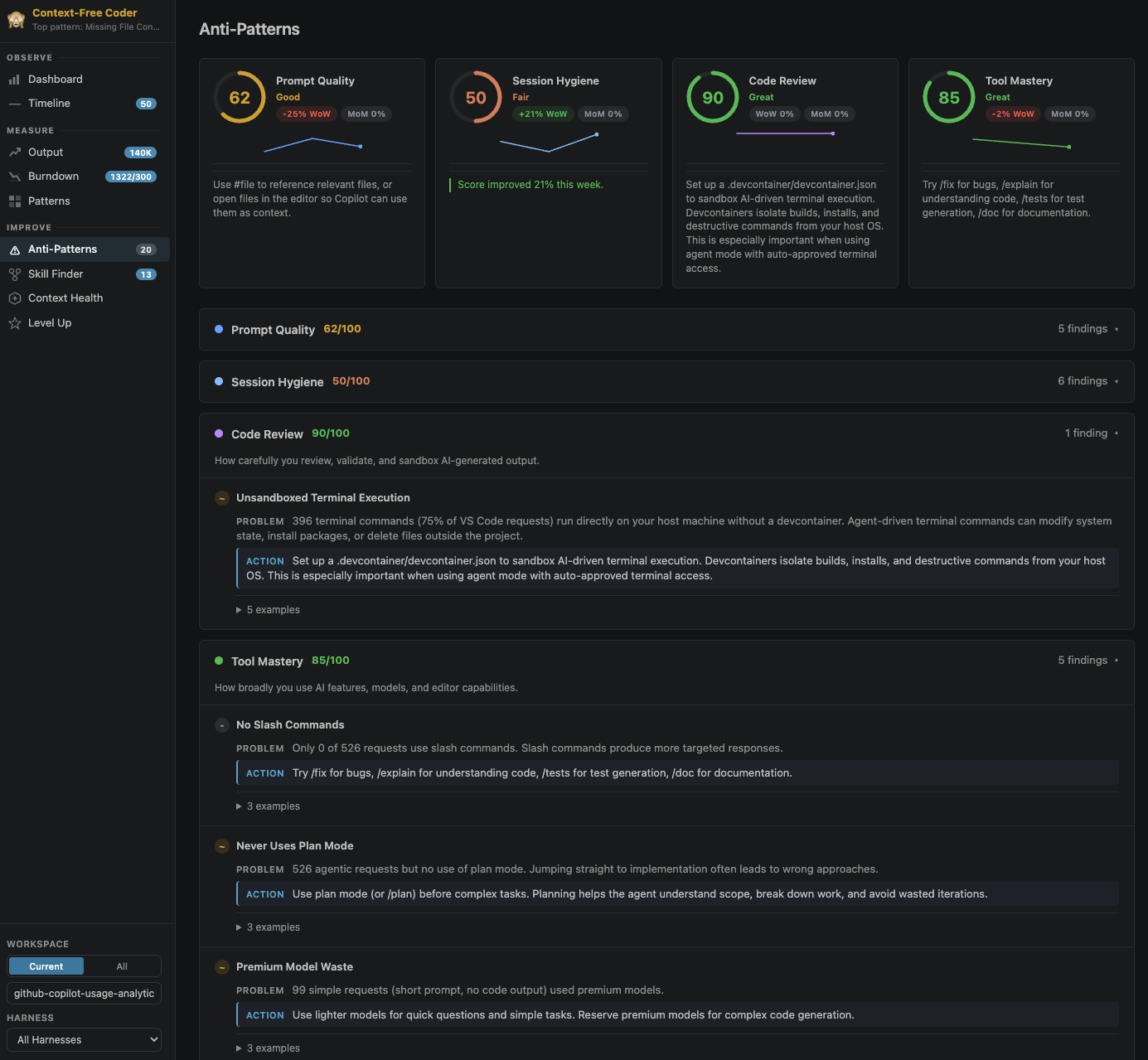
Anti-pattern detector
The repository has about 45 built-in rules that check your session hygiene. For example, if you're overwhelming the AI with too long and confusing prompts or forgetting to clean up the context, the "coach" will notice. It will show a card with a problem description and, more importantly, suggest specific actions to fix it.
Hidden skills finder
Often we write the same instructions in different chats. Skill Finder analyzes these repetitions and suggests turning them into reusable skills. This helps formalize your personal coding style.
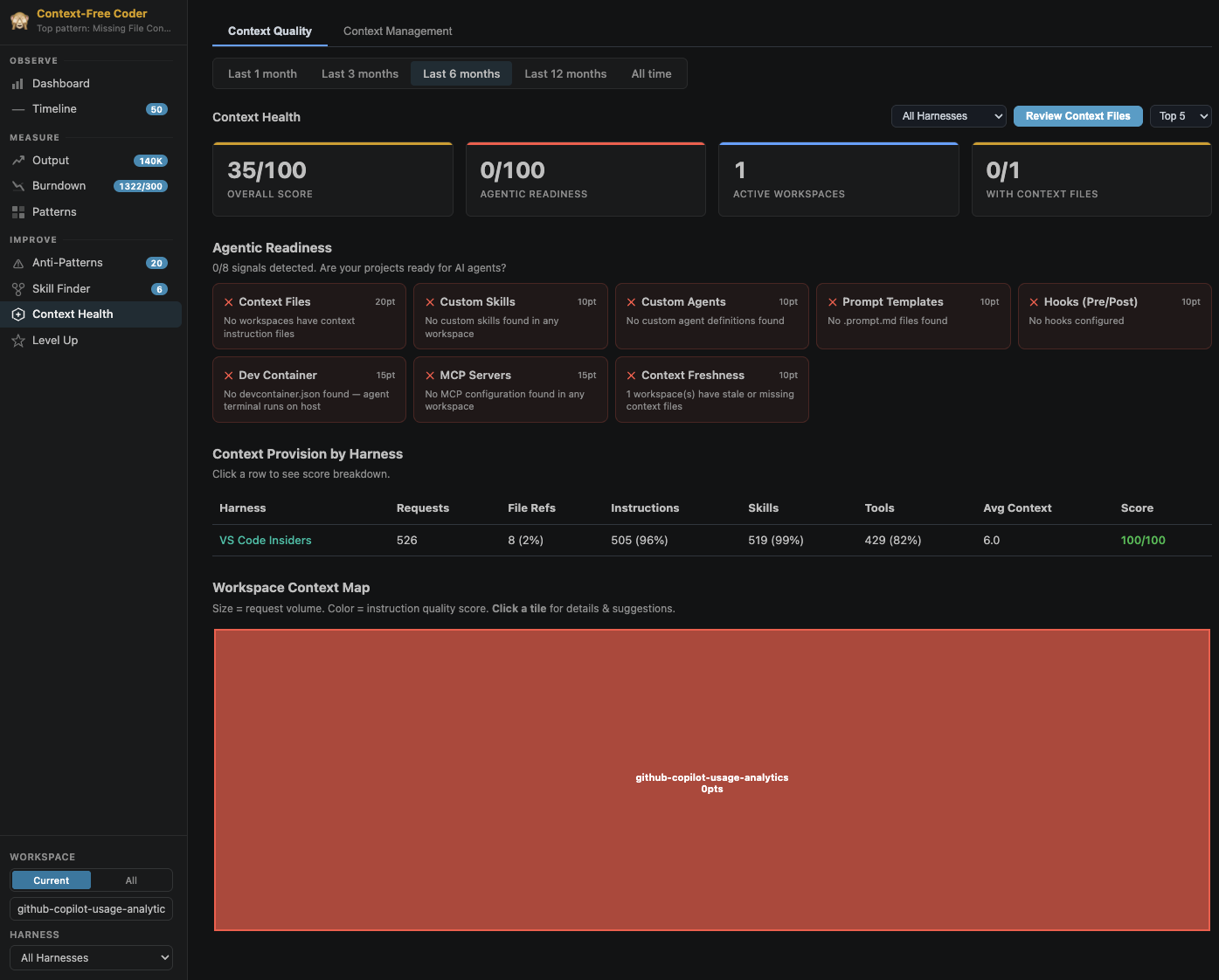
Context analysis
This is probably the most useful part for working with complex projects. The tool evaluates Context Health — how well the AI understands your workspace structure. It checks instruction files and project readiness for working with agents.
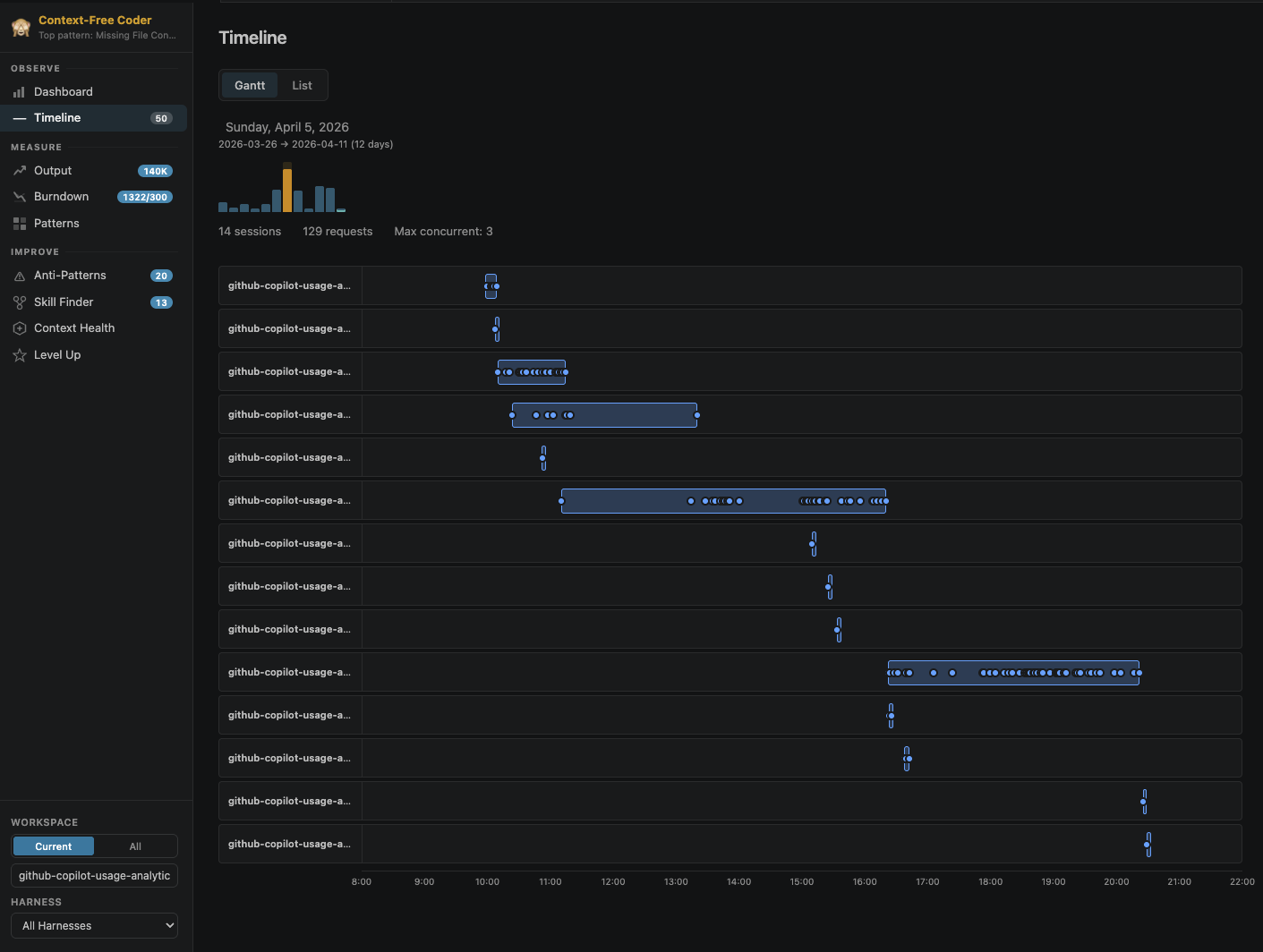
Activity visualization
Inside there are Gantt-style timelines. You can see what time of day you most often turn to the assistant and which projects you work on most intensively. There's even a 24/7 activity heatmap.
Learning gamification
Developers added an achievement and level system (from bronze to diamond). There's even a Learning Center section that generates quizzes based on your actual code and logs. Sounds like a way to turn routine into character leveling up.
How to run it
There's a catch here: the extension isn't on the official marketplace. Microsoft positions this as a community experiment, so you'll have to build the file yourself.
If you have Node.js installed, the process looks like this:
git clone https://github.com/microsoft/ai-engineering-coach.git
cd ai-engineering-coach
npm ci
npm run package
After that, an extension file will appear in the folder. You can install it via console:
code --install-extension ai-engineer-coach-*.vsix
Or just drag it into the VS Code window. After installation, call up the command palette (Ctrl+Shift+P) and search for AI Engineer Coach: Open Dashboard.
Why it's worth trying
The main advantage is privacy. All analysis happens locally on your machine. The extension works in read-only mode and doesn't send anything "home." It uses VS Code's built-in model APIs only when you press the "analyze" button yourself.
The tool is specific. It won't write code for you, but it will make you think: "Am I feeding the model too much garbage?" For those who want to move from simple chat to conscious Agentic SDLC, this is a great entry point.
I especially recommend checking out the Coding Moments section. It's a gallery of screenshots from your sessions that lets you literally scroll back through your development history and understand at what point something went wrong.
Who it's for
The project will definitely appeal to those who love numbers and want to optimize their workflows. If you feel that Copilot sometimes gets stuck, maybe the issue isn't with the model but with how you assign tasks to it. This "coach" helps find such bottlenecks.
The only downside is the need for manual building, but for a developer that's unlikely to be a barrier. Plus, inside you'll find a Rule Editor where you can write your own analysis rules in Markdown and test them right on your data. A constructor for those who like to customize tools for themselves.
Related projects