How Podman Desktop Replaces Docker Desktop in Everyday Work
A few years ago, paid subscriptions and new restrictions in Docker Desktop prompted many developers to look for alternatives. In the console, the Podman utility handles its job well: the syntax is identical to Docker, and a background daemon running as root is not needed at all. But when you need to quickly check logs from five related services, forward ports, or clean up old disk images, constantly typing long commands in the terminal becomes tedious.
The graphical client Podman Desktop from Red Hat fills this niche. The tool is completely free, distributed under the Apache 2.0 license, and can work not only with the native Podman engine but also with other container environments.
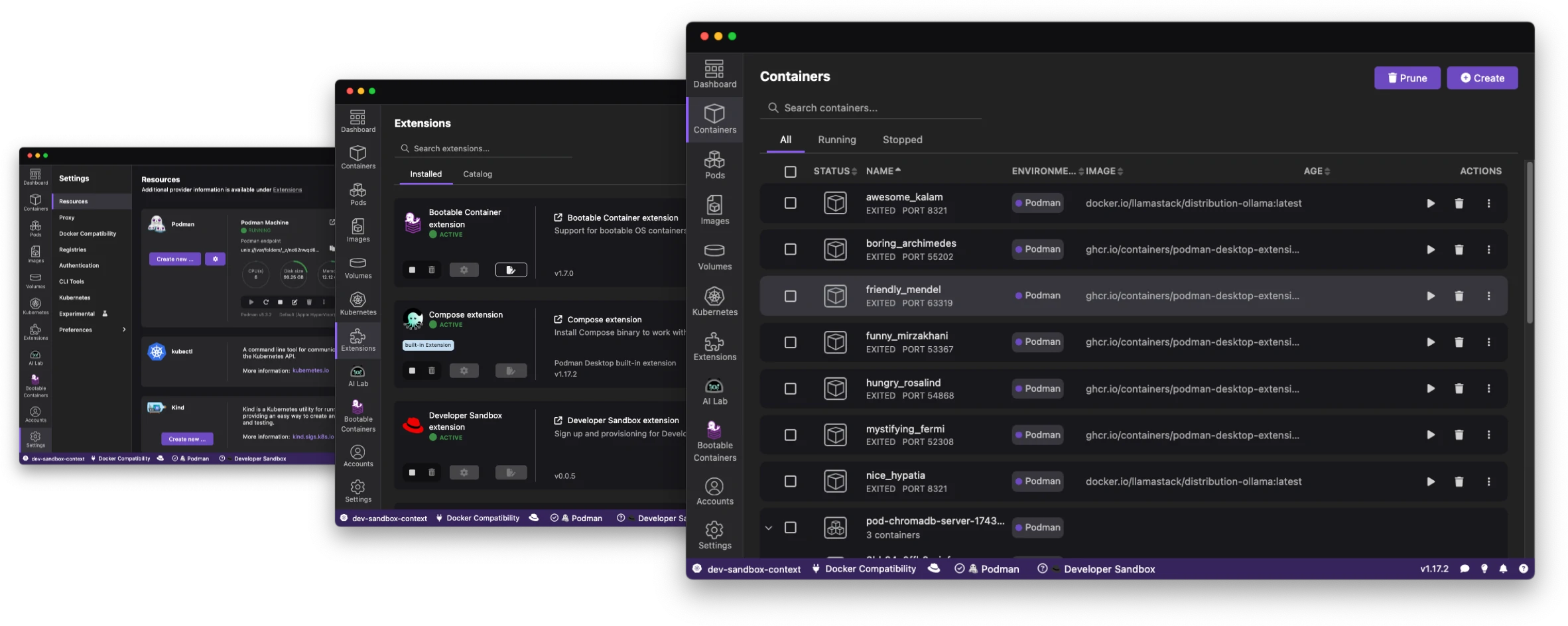
What the Application Does
Essentially, this is a control panel for your local development environment. The application minimizes to the system tray, shows the current status of the container engine, and provides quick access to containers, pods, images, and network volumes.
The main features you encounter in daily work:
- Managing containers and pods. You can start, stop, and debug containers, view logs in real time, and open a terminal right inside the running environment.
- Exporting configurations to Kubernetes. If you have assembled a local pod from a couple of containers, the application will generate a ready-to-use Kubernetes YAML manifest or deploy it directly to a test cluster.
- Support for different engines. Besides Podman, the utility works with Docker, Lima, and Red Hat CodeReady Containers (CRC).
- Configuring private registries and proxies. Authorization in OCI registries and corporate proxy server parameters are available in a convenient settings window.
Support for Pods and Kubernetes
One of the useful features of Podman is the concept of pods, which is close to Kubernetes logic. Multiple containers are combined into a shared group and share network space and ports between them.
In Podman Desktop, this relationship is clearly visible. You can combine running containers into a pod with a mouse click, check shared network sockets, and view resource consumption.
When it comes time to move local development to a test cluster, the built-in converter prepares the manifest file. This saves time: you verify the hypothesis locally, and then send the ready YAML to the operations team. Switching the Kubernetes context also takes just a couple of clicks directly from the system tray menu.
Under the Hood
The project is written in TypeScript using Electron. For dependency management, the authors chose pnpm. Running locally in development mode is done with the standard command:
pnpm install && pnpm watch
The extension architecture is thoughtfully designed. The application supports plugins through which additional tools are connected. If the basic capabilities are not enough, you can write your own module or install a ready-made solution from the catalog.
Automatic updates of the CLI engine Podman itself work directly from the interface. You no longer have to track utility releases through the system package manager: when a new version comes out, the application will offer to update with one click.
How to Use in Real Life
Let's imagine a typical workday. You spin up a local environment consisting of a database, a caching service, and a web application. In the Podman Desktop panel, all three components are displayed in a single list.
If one of the containers exits with an error, you don't need to find its identifier through podman ps -a and request log output in the console. It's enough to click on the container in the list, open the logs tab, and enable tracking of new entries. The built-in terminal opens nearby if you need to look inside the file system.
For engineers in large companies, working with corporate proxies and private image registries will become critical. Authorization data is saved centrally, and network requests go through the specified proxy without constantly editing HTTP_PROXY variables before each CLI call.
Who Should Try It
If you have already switched from Docker Desktop to Podman on the command line, installing the graphical interface is a logical next step. You will get familiar visual control over resources without losing speed.
For those who are still sticking with paid Docker Desktop exclusively for the graphical interface, it definitely makes sense to test Podman Desktop. The project is active, community-driven, and the open license guarantees no sudden changes in the terms of use.
Related projects