How to bring your Linux desktop to a unified style with Papirus
Almost everyone who has tried customizing a Linux distribution has encountered visual chaos. You download a beautiful theme, but the application menus look like a hodgepodge from different eras. Chrome looks fine, Steam shows a blurry low-resolution image, and an old utility from AUR displays the default cross icon.
The Papirus icon set solves exactly this problem. The project has been on GitHub since 2016, gathered almost 8,000 stars, and is still actively updated. Let's figure out why it's set as default in many builds and how to get the most out of it.
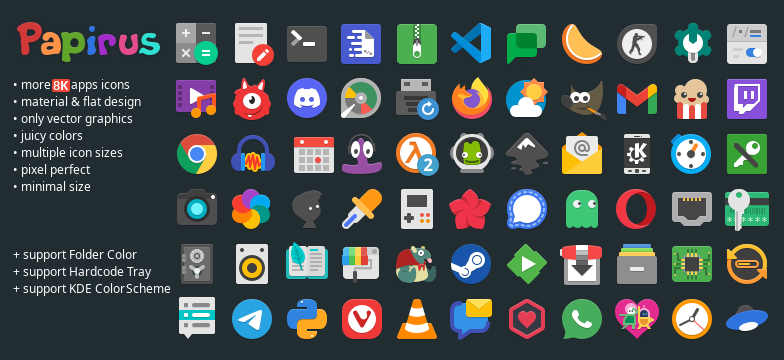
What's the point of the project
Papirus is a vector icon set with an emphasis on crisp shapes, a moderate flat aesthetic, and subtle shadows. It is based on the Paper Icon Set idea, but the authors have moved far ahead in terms of supported software and customization flexibility.
The theme comes in three basic variants right away:
- Papirus — standard set for neutral and light themes.
- Papirus Dark — adaptation for dark desktop environments.
- Papirus Light — variant for fully light interfaces.
The main advantage of SVG graphics is that nothing blurs or pixelates on 4K monitors, whether it's a tiny 16x16 system panel or a large application grid in GNOME.
Taming hardcoded icons
Regular themes change icons only where the application uses standard system names. But Linux has plenty of software whose authors hardcode an absolute path to the image directly in the .desktop file or in the binary. Because of this, the tray often turns into a mess of old raster icons.
The creators of Papirus decided to approach the problem systematically. Instead of asking users to manually rewrite text files, they integrated support for third-party scripts.
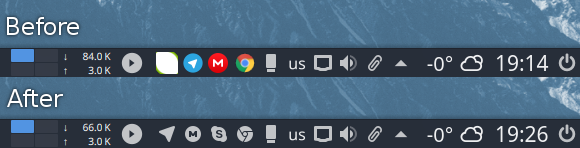
For the system tray, the Hardcode-Tray utility is supported. With a single command in the terminal, you can redraw the tray to a unified size and color:
sudo -E hardcode-tray --conversion-tool RSVGConvert --size 22 --theme Papirus
If you play games through Steam, the icons of running games are usually pulled from a scattered collection of unrelated manifests. For this, the authors recommend using Steam Icons Fixer — a script that scans the installed library and substitutes neat SVGs from Papirus.
Folder colors and KDE integration
Changing the color of individual directories in the file manager is convenient when you need to quickly visually separate projects, downloads, or important documents. Papirus is supported out of the box by the Folder Color extension.
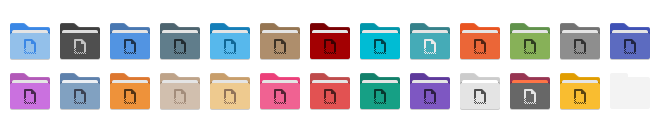
In KDE Plasma, you can change icon colors globally or individually through dolphin-folder-color or the command-line utility papirus-folders. Just run a command in the terminal, and the color of all directories in the system will change, for example, to blue or green without restarting the graphical session.
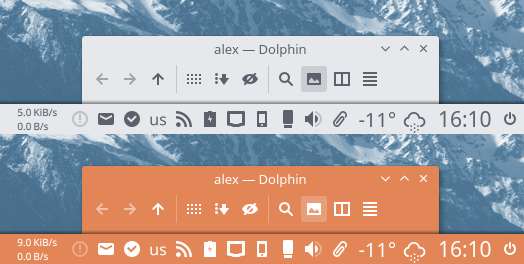
For KDE Plasma users, proper handling of symbolic icons is provided. Monochrome icons on the taskbar automatically adapt to the system palette, without blending into the background.
How to install
In most popular distributions, the package is already available in the official repositories:
# Arch Linux
sudo pacman -S papirus-icon-theme

# Ubuntu / Debian
sudo apt install papirus-icon-theme

# Fedora
sudo dnf install papirus-icon-theme
If you have a rare distribution or want to install fresh builds directly from the master branch, the authors provide an automatic installation script:
wget -qO- https://git.io/papirus-icon-theme-install | sh
The script will automatically detect the environment and place files in /usr/share/icons. If necessary, the path can be overridden via the DESTDIR variable, for example, specifying ~/.local/share/icons for a local installation without root privileges.
What's inside for developers and designers
Papirus is not just a pile of stacked SVGs. Inside the repository in the tools/work directory lies a full-fledged working environment for those who want to add their own icons or submit a Pull Request.
There you will find:
- Detailed guidelines on grid and style in DESIGN.md.
- Inkscape templates for different sizes (16x16, 24x24, 48x48, 64x64).
- Scripts for automatic cleanup of SVGs from editor garbage tags before committing.
- Tools for checking symlink correctness.
If the application you need is missing from the theme, creating an icon from a template and running it through a local CI script takes about fifteen minutes at most.
Is it worth installing
Papirus gained popularity not because of marketing, but because of meticulous attention to detail. The developers addressed almost all Linux users' pain points: crooked trays of Electron applications, blurry Steam icons, inconsistencies in file managers across different DEs (from GNOME and Xfce to LXQt and Cinnamon).
If you're tired of interface inconsistencies or you're building a minimalist desktop based on a window manager like i3 or Hyprland, Papirus is definitely worth trying.
Proyectos relacionados